> For the complete documentation index, see [llms.txt](https://docs.realmjoin.com/llms.txt). Markdown versions of documentation pages are available by appending `.md` to page URLs; this page is available as [Markdown](https://docs.realmjoin.com/ja/to/workplace-cloud-storage.md).
# Workplace Cloud Storage
RealmJoin Workplace Cloud Storage は、管理されたお気に入り、背景、Outlook 署名など、Intune ポリシーで参照されるファイルを管理します。
## 概要
Modern Workplace デバイスは Microsoft Intune を通じてポリシーと構成を受け取ります。これらの設定の一部は、URL で利用可能なファイルや、JSON や XML のような特別な形式のファイルに依存します。この RealmJoin 機能は、管理者が使いやすいインターフェースからそれらのファイルを管理するためのものです。
現在、以下の種類がサポートされています:
* 管理されたお気に入り(Microsoft Edge および Google Chrome)
* 背景画像およびその他のファイル
* Outlook の署名
RealmJoin のこのネイティブ統合により、GitHub や Microsoft Marketplace 上の別個のアプリ(Azure Web App)は不要になります: [M365 Workplace クラウド ストレージ](https://github.com/glueckkanja/gk-m365-workplacecloudstorage)
Enterprise Mode Site Lists の管理機能は Microsoft 365 admin center で提供されています。そのため、既存または新規の site list は、ここで説明されている方法で追加する必要があります: [エンタープライズ サイト リストをクラウドに公開](https://learn.microsoft.com/en-us/deployedge/edge-ie-mode-cloud-site-list-mgmt#publish-enterprise-site-list-to-the-cloud-1)。その結果の site list ID は、その後 Intune ポリシーを介して Microsoft Edge に公開されます。
## セットアップ
{% hint style="info" %}
この機能をお客様の Tenant で有効化するには、RealmJoin サポートにお問い合わせください。
{% endhint %}
### Storage Account を作成
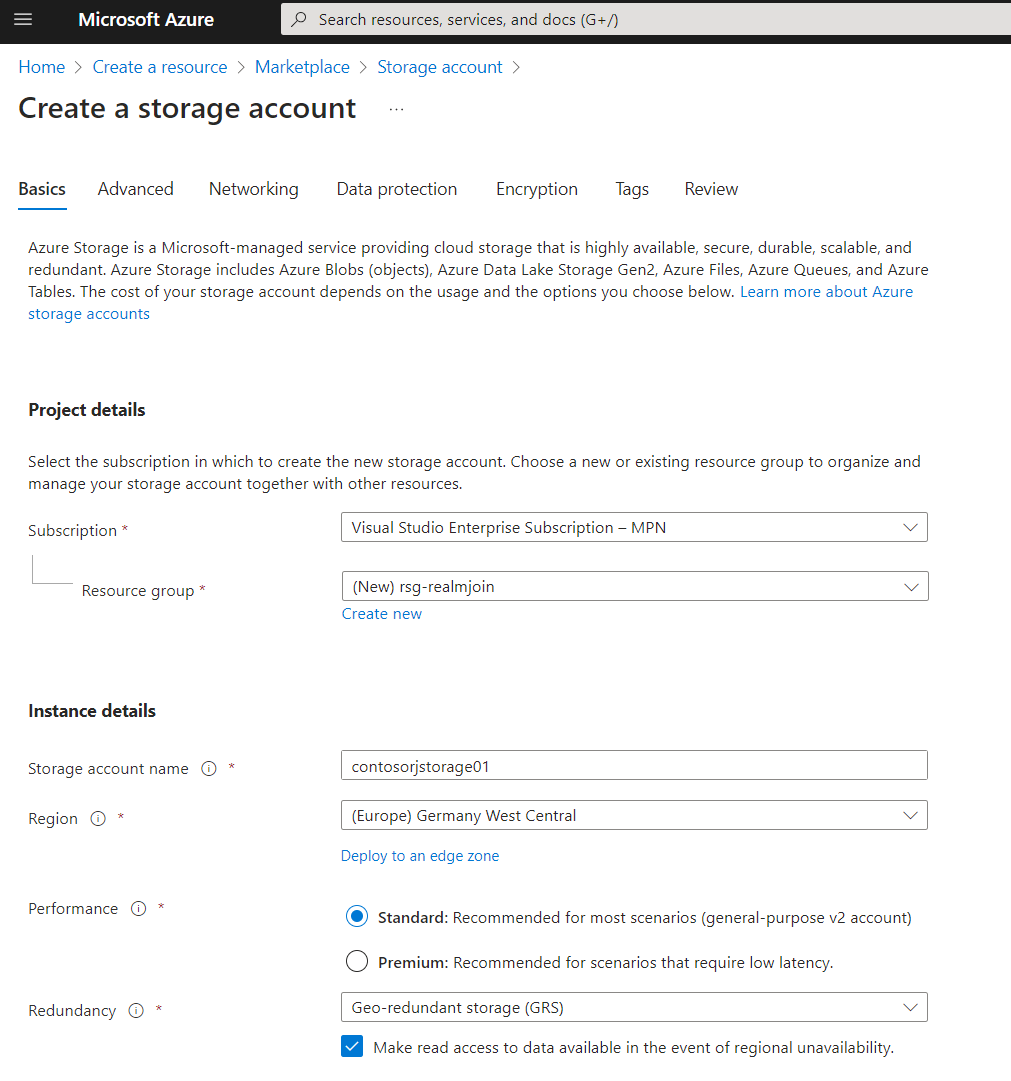
1. この機能には Azure 上の BLOB ストレージが必要です。新しい Storage Account を作成してください:
2. 名前、リージョン、冗長性などの設定を要件に合わせて調整してください。
3. 設定「Allow enabling anonymous access on individual containers」を有効にする必要があります(タブ「Security」)。これは、背景画像などの保存されたファイルを匿名でアクセス可能にするために必要です
{% hint style="info" %}
Storage Account の作成時に設定「Allow enabling anonymous access on individual containers」が有効になっていない場合、RealmJoin はエラー「Error uploading file. Please try again」を表示します。\
その場合は、Storage Account の「Settings」に移動し、「Allow Blob anonymous access」を「Enabled」に設定してください。
{% endhint %}
4. 特別な要件がない場合は、「Networking」や「Data protection」などの他のタブは既定値を使用してください。
5. 作成に成功したら、新しい Storage Account を開き、「Access keys」に移動してください。「key1」配下の「Connection string」をコピーしてください:
6. RealmJoin Portal に移動します(管理者として)
7. 設定を開き、「Workplace cloud storage」タブに切り替えてください。
8. 先ほどコピーした接続文字列を「Access key (Connection string) for Azure Storage account」に貼り付け、「Save」をクリックしてください:
### Azure Web App からの移行
現在、以下の別個の web app を使用している場合: [GitHub](https://github.com/glueckkanja/gk-m365-workplacecloudstorage) または Microsoft Marketplace からのものであれば、ネイティブな RealmJoin 統合へ簡単に移行できます。
{% hint style="warning" %}
ご注意ください: **Enterprise Mode Site Lists の管理は** は **できません** RealmJoin 経由ではできません。どうか **移行してください** あなたの site list を Microsoft 365 admin center に **以下の手順の前に** 次のように説明されているとおり [概要](#overview).
{% endhint %}
#### 既存の Storage Account に接続
対応する既存の **Storage Account に移動してください** そのアクセスキーを RealmJoin に追加してください(前のセクションで説明したとおりです)。その後、既存のデータが RealmJoin に自動的に表示されます。
#### クリーンアップ
管理ポータルを提供する web app はもう不要です。そのため、リソース グループに移動し、Azure 上の以下のリソースを削除してください:
* App Service
* App Service に接続された App Service plan
{% hint style="warning" %}
注意してください **削除しない** この **Storage Account**.
{% endhint %}
Entra ID 内の不要になった Enterprise App も削除してください(名称が異なる場合があります):
## お気に入り
RealmJoin では、シンプルな UI から複数のお気に入りリストを追加・管理できます。その後、JSON や XML などの形式でエクスポートまたはコピーできます。
1. メイン メニューの「お気に入り」機能に移動し、新しいリストを作成してください。新しく作成されたリストには ID が付与され、必要に応じて変更できます(対応するリストを内部で識別するためだけのものです)。
2. 必要なリンクを追加するか、サブフォルダーを作成してください。最初のフォルダーの名前(既定名: 「Favorites Bar」)は、お気に入りバー上のフォルダー名になります。ユーザーに表示されます(多くの顧客はこれを自社名に変更します)。
3. その後、リストをさまざまな形式でエクスポートできます:
* JSON(Windows 上の Microsoft Edge または Google Chrome)
* XML ファイル(macOS 上の Microsoft Edge または Google Chrome)
* XML 付き URL(Microsoft Edge Legacy)
### Windows 上の Microsoft Edge または Google Chrome
設定「Configure favorites」を使用して新しい Settings catalog プロファイルを作成し、JSON を貼り付けてください:
Google Chrome では、この設定は「Managed Bookmarks」と呼ばれます。
### macOS 上の Microsoft Edge または Google Chrome
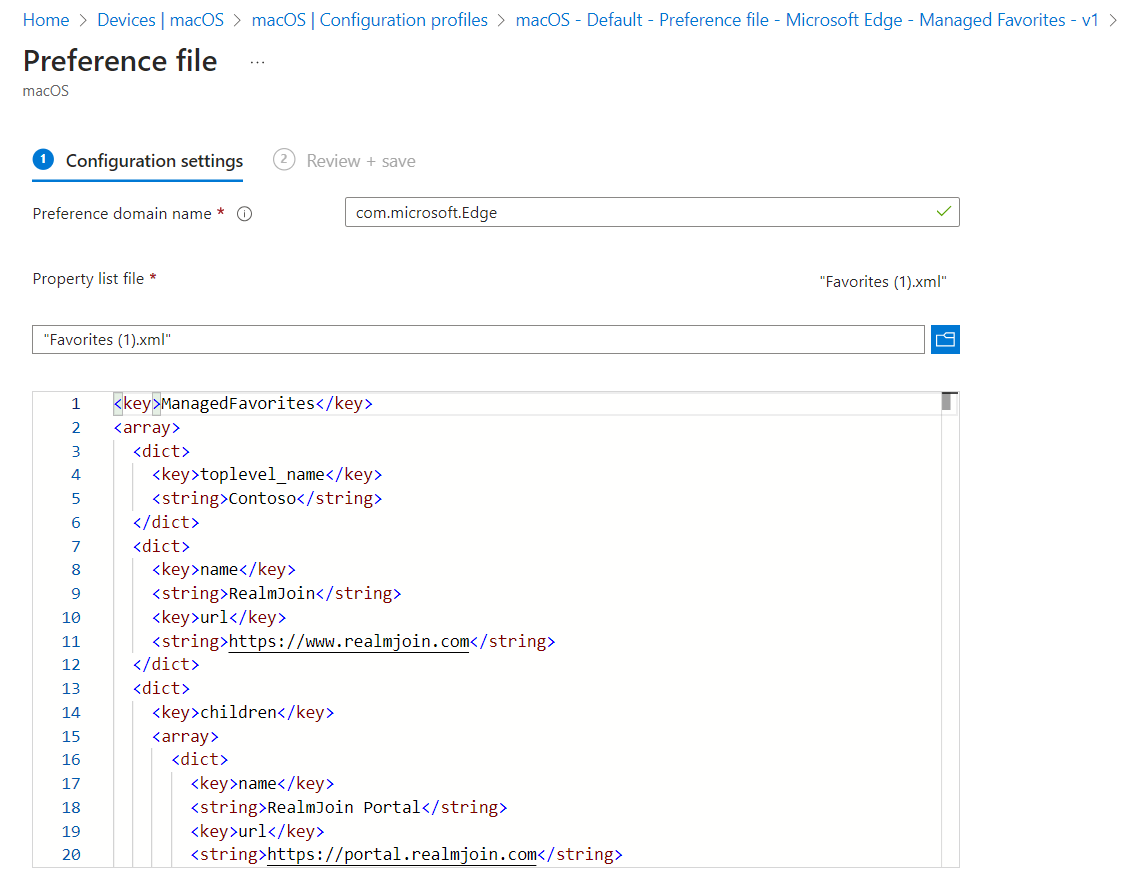
「Preference file」タイプの新しい構成プロファイル(テンプレート)を作成してください。「Preference domain name」には「com.microsoft.Edge」を入力します。RealmJoin で生成した XML をアップロードしてください:
Google Chrome では、「Preference domain name」を「com.google.chrome」に設定し、対応する XML を使用します。Microsoft Edge と Google Chrome の XML の違いは最初の1行だけです:
```
ManagedBookmarks が ManagedFavorites の代わりになります
```
## 背景画像およびその他のファイル
メニューの組織セクションに移動します。「Backgrounds」または「Other Files」タブに切り替えてください。あとは、必要なファイル(背景画像、構成ファイル、公開証明書など)をアップロードするだけです。これらは BLOB ストレージに追加され、公開アクセス可能な URL が付与されます。構成プロファイルやスクリプトなどでそれらの URL を使用してください(例: Intune で背景画像を設定)。
{% hint style="warning" %}
決して **機密ファイルをアップロードしないでください** 公開 URL からアクセス可能になるためです。
{% endhint %}
### ファイル サイズ
RealmJoin では、個々のアップロードに固定の最大サイズは適用されません。ただし、RealmJoin Portal 経由でアップロードされるファイルはブラウザー セッションを通じて転送され、一度に処理されるため、このアップロードは背景画像、構成ファイル、公開証明書などの小さなファイル向けです。Azure Blob Storage 自体の制限はこれをはるかに超えており、実際には適用されません。
{% hint style="info" %}
大きなファイル(例: 数百 MB)については、Azure Portal や Azure Storage Explorer などを使って、Storage Account の該当コンテナーに直接アップロードしてください。RealmJoin はコンテナー内のすべてのファイルを一覧表示するため、これらのファイルも公開 URL とともに RealmJoin に表示されます。
{% endhint %}
## Outlook の署名
この機能では、Outlook の署名テンプレートを追加できます。RealmJoin のソフトウェア パッケージ(Windows のみ)と組み合わせることで、必要なテンプレートが管理対象クライアントにダウンロードされ、Outlook Desktop に追加されます。さらに、テンプレート内に変数を追加でき、それらはユーザーのプロパティ(名前、メール アドレス、役職、電話番号など)に置き換えられます。
### 署名を作成または編集
1. メニューの組織セクションに移動し、「Signatures」タブに切り替えてください。
2. WYSIWYG エディターで署名を作成または編集するだけです。変数はテキスト内に直接追加されます。
3. 署名配布に使用する公開リンクをコピー
#### サポートされている変数
* Graph\_User\_BusinessPhone
* Graph\_User\_City
* Graph\_User\_CompanyName
* Graph\_User\_Country
* Graph\_User\_Department
* Graph\_User\_DisplayName
* Graph\_User\_GivenName
* Graph\_User\_Id
* Graph\_User\_JobTitle
* Graph\_User\_Mail
* Graph\_User\_MobilePhone
* Graph\_User\_FaxNumber
* Graph\_User\_OfficeLocation
* Graph\_User\_PostalCode
* Graph\_User\_State
* Graph\_User\_StreetAddress
* Graph\_User\_Surname
* Graph\_User\_onPremisesExtensionAttributes\_extensionAttribute1
* ...
* Graph\_User\_onPremisesExtensionAttributes\_extensionAttribute15
### 署名を配布
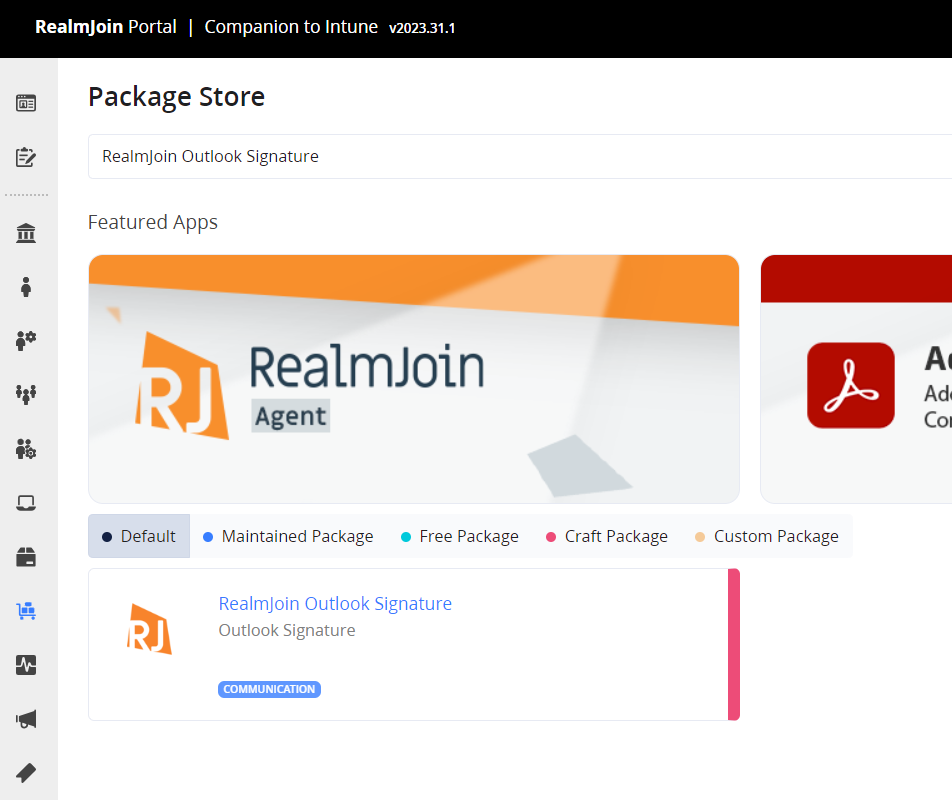
1. RealmJoin Package Store で「RealmJoin Outlook Signature」を検索してください:
2. Technical Help に記載されているとおりにパッケージを構成し、コピーした URL をテンプレートに貼り付けてください:
3. このパッケージには、複数の署名の配布、タスクによる自動更新、既定の署名の設定など、その他にもいくつかのオプションがあります。
---
# Agent Instructions
This documentation is published with GitBook. GitBook is the documentation platform designed so that both humans and AI agents can read, navigate, and reason over technical content effectively. Learn more at gitbook.com.
## Querying This Documentation
If you need additional information that is not directly available in this page, you can query the documentation by asking a question.
Perform an HTTP GET request on the following URL with the `ask` and `goal` query parameters:
```
GET https://docs.realmjoin.com/ja/to/workplace-cloud-storage.md?ask=&goal=
```
`ask` is the immediate question: it should be specific, self-contained, and written in natural language.
`goal` is what the user is ultimately trying to achieve, the reason they need the answer. Sharing it helps GitBook give you a better, more relevant answer. A goal is most helpful when it describes the outcome the user wants rather than restating the question. For example, with `ask=how do I create an API token`, a goal like `automate deployments from our CI pipeline` lets GitBook tailor the answer to that use case.
The response will contain a direct answer to the question and relevant excerpts and sources from the documentation.
Use this mechanism when the answer is not explicitly present in the current page, you need clarification or additional context, or you want to retrieve related documentation sections.