> For the complete documentation index, see [llms.txt](https://docs.realmjoin.com/llms.txt). Markdown versions of documentation pages are available by appending `.md` to page URLs; this page is available as [Markdown](https://docs.realmjoin.com/ja/apurikshon/packages/android-apps-managed-google-play.md).

# Android アプリ（Managed Google Play）

RealmJoin Portal を通じて Managed Google Play から Android アプリを展開します。Intune での前提条件、必要なアクセス許可、有効化、アプリのサブスクライブについて。

RealmJoin Portal が提供するのは **Android** アプリ管理に。これで、Android アプリを **Managed Google Play** から、Windows と macOS のパッケージと並んで、同じポータル内で、同じ RealmJoin 管理のグループを使って展開できるようになりました。

これを Intune で手動で行うには、いくつかの手順が必要です。Managed Google Play でアプリを承認し、同期を待ち、グループを作成して割り当てを設定します。RealmJoin なら 1 回で済みます: **Google Play のリンクを貼り付ける**。RealmJoin がアプリを承認し、Intune に同期し、Required、Available、Uninstall グループを作成して自動で割り当てます。数分後にはアプリを展開できます。

以後、Android アプリは他のすべての管理対象パッケージと同様に扱われます:

* **すべてのプラットフォームを 1 か所で。** サポート担当者と管理者は、Intune 管理センターに切り替えることなく、同じポータルで Windows、macOS、Android アプリを扱えます。
* **使い慣れた割り当て。** アプリのページからアプリのグループにユーザーまたはデバイスを追加します。Windows と macOS のパッケージとまったく同じです。
* **常に最新。** Google Play が更新を自動配信するため、こちらでバージョン管理を行う必要はありません。
* **組み込みの安全チェック。** RealmJoin は、何かを作成する前に、そのアプリが Google Play に存在し、すでにあなたのテナントにないことを確認します。

## Android アプリの違い

Android アプリは、他のものとは動作が異なります [Package Store](/ja/apurikshon/packages/package-store.md):

* ありません **RealmJoin カタログは** Android 向けです。任意のアプリを [Google Play](https://play.google.com/store/apps) で見つけ、そのストアリンクを貼り付けます。
* アプリは常に **Intune 管理対象** アプリ (Managed Google Play ストア アプリ) として展開されます。RealmJoin Agent 経由の展開は利用できません。
* **バージョンのライフサイクルは Google が管理します。** 更新は Google Play によって配信されるため、バージョンも、Preview グループも、 [Update Group](/ja/apurikshon/packages/update-group.md) Android アプリ向けのものもありません。
* 名前、アイコン、説明は Google Play から取得され、 **変更できません** RealmJoin Portal では変更できません。

{% hint style="info" %}
これは RealmJoin における Android アプリ管理の最初の実装です。範囲と操作方法は今後変更される可能性があります。
{% endhint %}

## 前提条件

次のすべてを完了してください **前に** 機能の有効化を依頼します。機能をオンにすると、RealmJoin は Managed Google Play の接続を確認し、接続がない場合は有効化を拒否します。

{% stepper %}
{% step %}

### Intune を Managed Google Play に接続する

これはテナントごとに 1 回、Intune 管理者またはグローバル管理者が行います。

1. 次を開きます [Microsoft Intune 管理センター](https://intune.microsoft.com).
2. 次へ移動します **デバイス → 登録 → Android → 前提条件 → Managed Google Play**.
3. チェックを入れます **同意します** を選択し、 **今すぐ Google に接続**.
4. Managed Google Play エンタープライズの所有者とする Google アカウントでサインインし、ウィザードを完了します。

<figure><img src="https://3438325150-files.gitbook.io/~/files/v0/b/gitbook-x-prod.appspot.com/o/spaces%2F-MkrcM7cKOpXKri1kVrh%2Fuploads%2Fgit-blob-00fa3b01b64bd813fcb5baf89c995350dec7e927%2Fandroid-mgp-intune-connect.webp?alt=media" alt="Managed Google Play under Devices > Enrollment > Android in Intune"><figcaption><p>デバイス → 登録 → Android の Managed Google Play (接続済み、状態: Setup)</p></figcaption></figure>

{% hint style="warning" %}
**Tenant 管理 → コネクタとトークン → Managed Google Play** は、同期されたアプリの接続状態とスコープタグのみを表示します。Google アカウントを接続するオプションはもうありません。
{% endhint %}

接続後、状態には **セットアップ** とリンクされたアカウントが表示されます。次の画面では **Tenant 管理 → コネクタとトークン → Managed Google Play** 状態に次が表示されていてはなりません **未プロビジョニング**.

そのページでスコープ タグを使用している場合は、Android アプリを扱う管理者がそのタグに割り当てられていることを確認してください。そうしないと、Intune で同期されたアプリを表示できません。
{% endstep %}

{% step %}

### Microsoft Graph 権限を RealmJoin Portal に付与する

RealmJoin Portal アプリには Microsoft Graph のアプリケーション権限が必要です **`DeviceManagementConfiguration.ReadWrite.All`**。これは、Managed Google Play の接続状態を読み取り、アプリを Managed Google Play エンタープライズに対して承認および同期するために使用されます。

この権限は、RealmJoin Portal の **Features** タブからはまだ付与できません。代わりに次のスクリプトを実行してください。以下を置き換えます `<YOUR-TENANT-ID>` を、あなたの Entra ID テナント ID に置き換えてください。

{% code title="Grant-RealmJoinAndroidPermission.ps1" overflow="wrap" %}

```powershell
<#
.SYNOPSIS
    RealmJoin Portal アプリに Microsoft Graph のアプリケーション権限を付与します
    "DeviceManagementConfiguration.ReadWrite.All"（Managed Google Play 経由の Android 展開に必要）

.NOTES
    対象テナントのグローバル管理者または特権ロール管理者として実行してください。
    Microsoft Graph PowerShell SDK が必要です:  Install-Module Microsoft.Graph -Scope CurrentUser
#>

$TenantId    = "<YOUR-TENANT-ID>"                         # 例: 00000000-0000-0000-0000-000000000000
$PortalAppId = "b0130885-16be-4c6f-83de-5b1042b5d2e3"     # RealmJoin Portal
$GraphAppId  = "00000003-0000-0000-c000-000000000000"     # Microsoft Graph
$Permission  = "DeviceManagementConfiguration.ReadWrite.All"

Connect-MgGraph -TenantId $TenantId -Scopes "Application.Read.All", "AppRoleAssignment.ReadWrite.All" -NoWelcome

$portalSp = Get-MgServicePrincipal -Filter "appId eq '$PortalAppId'"
if (-not $portalSp) { throw "RealmJoin Portal のサービス プリンシパルがテナント $TenantId に見つかりません。先に RealmJoin をオンボードしてください。" }

$graphSp = Get-MgServicePrincipal -Filter "appId eq '$GraphAppId'"
$appRole = $graphSp.AppRoles | Where-Object { $_.Value -eq $Permission -and $_.AllowedMemberTypes -contains "Application" }

$existing = Get-MgServicePrincipalAppRoleAssignment -ServicePrincipalId $portalSp.Id -All |
    Where-Object { $_.ResourceId -eq $graphSp.Id -and $_.AppRoleId -eq $appRole.Id }

if ($existing) {
    Write-Host "$Permission はすでに RealmJoin Portal に付与されています。" -ForegroundColor Green
}
else {
    New-MgServicePrincipalAppRoleAssignment -ServicePrincipalId $portalSp.Id `
        -PrincipalId $portalSp.Id -ResourceId $graphSp.Id -AppRoleId $appRole.Id | Out-Null
    Write-Host "$Permission を RealmJoin Portal に付与しました。" -ForegroundColor Green
}

Disconnect-MgGraph | Out-Null
```

{% endcode %}

このスクリプトは何度実行しても安全です。権限がすでに付与されている場合は何も行いません。新しい権限が反映されるまで数分待ってください。

{% hint style="danger" %}
この **Features** タブで次を提案される場合があります **ダウングレードする** `DeviceManagementConfiguration.ReadWrite.All` から `DeviceManagementConfiguration.Read.All` これはヘルス スクリプトでは不要になったためです。Android アプリを使用している場合は、 **ダウングレードしないでください**。書き込み権限がないと Android アプリの展開は機能しなくなります。
{% endhint %}
{% endstep %}

{% step %}

### 有効化を依頼する

Android アプリの展開は、依頼に応じて RealmJoin が有効化するテナント機能です。次の宛先に簡単な依頼を送信してください: <support@realmjoin.com> そしてテナント ID または名前を含めてください。

この機能には **Intune 展開** が、あなたのテナントでも有効である必要があります。
{% endstep %}
{% endstepper %}

## Android アプリを追加する

{% stepper %}
{% step %}

### Package Store を開き、Android を選択します

RealmJoin Portal で次を開きます [Package Store](/ja/apurikshon/packages/package-store.md) を選択し、 **Android** OS フィルターの項目を開きます。このフィルターは機能が有効化されると表示されます。

<figure><img src="https://3438325150-files.gitbook.io/~/files/v0/b/gitbook-x-prod.appspot.com/o/spaces%2F-MkrcM7cKOpXKri1kVrh%2Fuploads%2Fgit-blob-68ab504816a757cd36e40553d079ebd197fb24bf%2Fandroid-mgp-store-filter.png?alt=media" alt="Android OS filter in the Package Store"><figcaption><p>Package Store の Android OS フィルター</p></figcaption></figure>
{% endstep %}

{% step %}

### アプリの Google Play リンクをコピーする

次でアプリを見つけてください [Google Play](https://play.google.com/store/apps) そして、ブラウザーのアドレスバーからリンクをコピーします。たとえば Microsoft Teams の場合:

`https://play.google.com/store/apps/details?id=com.microsoft.teams`

パッケージ名のみ（`com.microsoft.teams`）でも構いません。
{% endstep %}

{% step %}

### リンクを貼り付けてサブスクライブする

リンクを次の欄に貼り付けます **Google Play リンク** フィールドに入力し、 **Intune（管理対象）を使用する**。RealmJoin は、アプリが Google Play に存在し、かつあなたのテナントですでにサブスクライブされていないことを確認してから、アプリのサブスクリプション ページを開きます。次を選択してください: **続行** サブスクリプションを開始します。ほかに設定するものはありません。

<figure><img src="https://3438325150-files.gitbook.io/~/files/v0/b/gitbook-x-prod.appspot.com/o/spaces%2F-MkrcM7cKOpXKri1kVrh%2Fuploads%2Fgit-blob-9c440bd9e3fdb8d9d16212ea0599c47609b90faa%2Fandroid-mgp-paste-link.png?alt=media" alt="Google Play link pasted. If the app already exists, the portal links to it instead"><figcaption><p>Google Play リンクが貼り付けられました。アプリがすでに存在する場合は、代わりにポータルがそのアプリへのリンクを表示します</p></figcaption></figure>

<figure><img src="https://3438325150-files.gitbook.io/~/files/v0/b/gitbook-x-prod.appspot.com/o/spaces%2F-MkrcM7cKOpXKri1kVrh%2Fuploads%2Fgit-blob-9ba5e73b754bfa50c839d23b66bacb3d4ff7eec0%2Fandroid-mgp-subscribe.png?alt=media" alt="Subscription page of a Managed Google Play app"><figcaption><p>Managed Google Play アプリのサブスクリプション ページ</p></figcaption></figure>
{% endstep %}

{% step %}

### サブスクリプションが完了するまで待つ

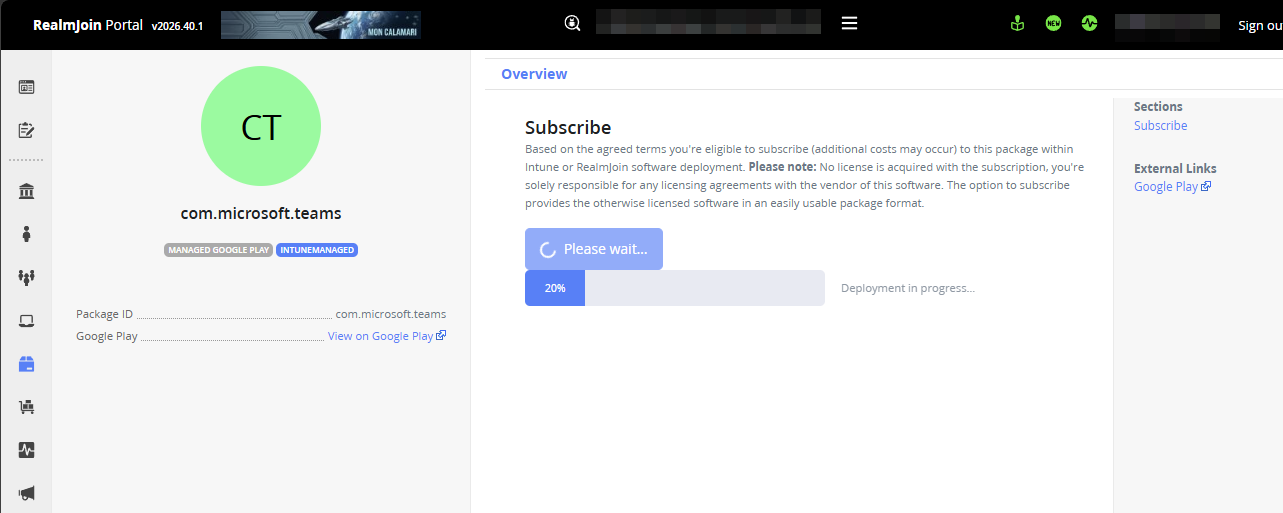
RealmJoin は現在、バックグラウンドでサブスクリプションを処理し、進行状況を表示します:

1. Managed Google Play エンタープライズでアプリが承認され、Intune の同期が開始されます。
2. RealmJoin はアプリが Intune に表示されるまで待機します。数分かかる場合があります。
3. 展開グループが作成され、アプリに割り当てられます。

<figure><img src="https://3438325150-files.gitbook.io/~/files/v0/b/gitbook-x-prod.appspot.com/o/spaces%2F-MkrcM7cKOpXKri1kVrh%2Fuploads%2Fgit-blob-908b095cfda7778004780f14cdc3f4ae2cfcb683%2Fandroid-mgp-progress.png?alt=media" alt="Subscription in progress"><figcaption><p>サブスクリプション進行中</p></figcaption></figure>

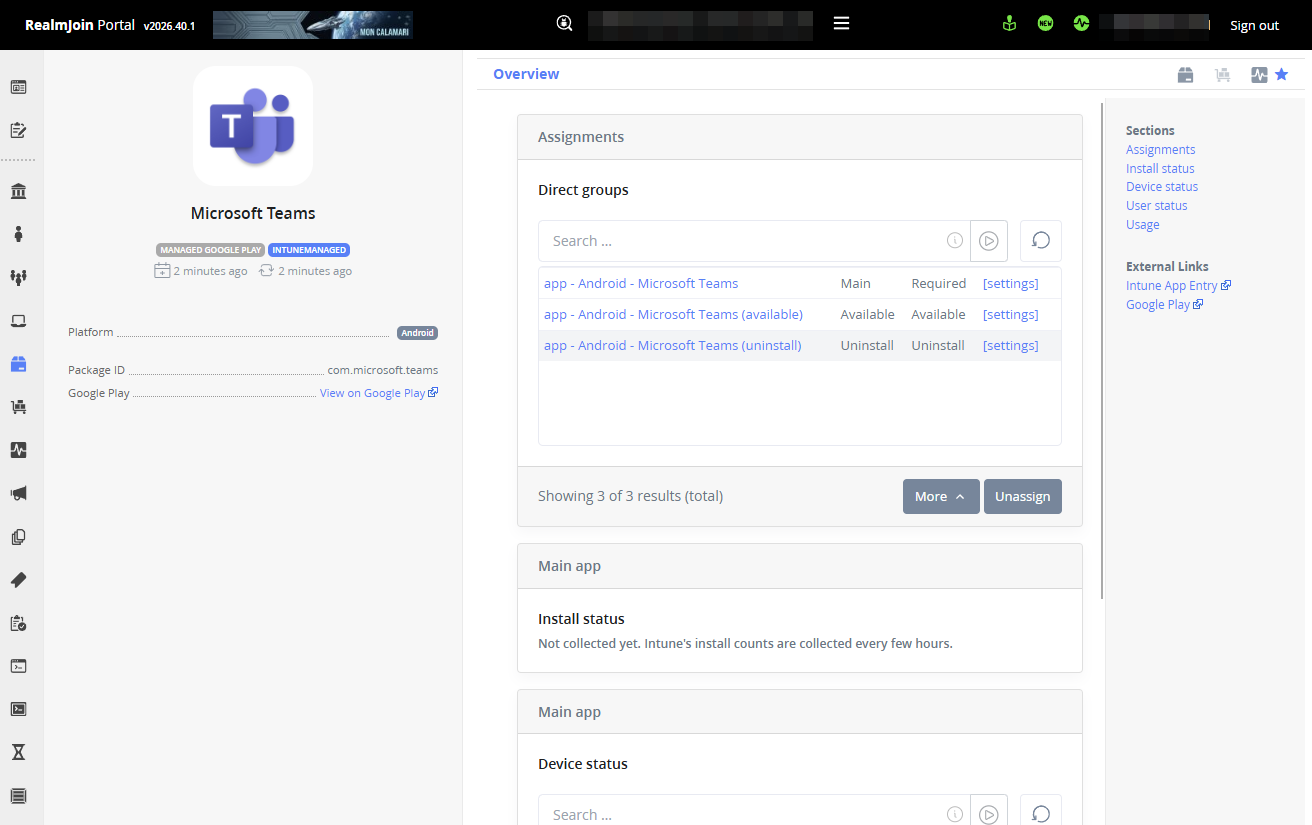
完了すると、アプリのページに作成されたグループと割り当てが表示されます。

<figure><img src="https://3438325150-files.gitbook.io/~/files/v0/b/gitbook-x-prod.appspot.com/o/spaces%2F-MkrcM7cKOpXKri1kVrh%2Fuploads%2Fgit-blob-d88776890fad17c7b2cae680b28c00cd30480ffb%2Fandroid-mgp-app-overview.png?alt=media" alt="Subscribed app with its RealmJoin-managed groups"><figcaption><p>サブスクライブ済みアプリとその RealmJoin 管理グループ</p></figcaption></figure>

アプリは次の項目にも一覧表示されます **Packages**。次を設定します: **Platform** フィルターを **Android** に設定して Android アプリのみを表示します。

<figure><img src="https://3438325150-files.gitbook.io/~/files/v0/b/gitbook-x-prod.appspot.com/o/spaces%2F-MkrcM7cKOpXKri1kVrh%2Fuploads%2Fgit-blob-e19a0bbec4256c8bc523c7fd7822cac893b6b11b%2Fandroid-mgp-packages-list.png?alt=media" alt="Packages list filtered to Android"><figcaption><p>Android に絞り込まれた Packages 一覧</p></figcaption></figure>
{% endstep %}
{% endstepper %}

## アプリを展開する

RealmJoin は Android アプリごとに 3 つの Entra ID グループを作成し、Intune で割り当てます。名前はあなたのテナントのグループ命名テンプレートに従います。既定のテンプレートでは、次のようになります（Microsoft Teams の例）:

| グループ                                          | Intune の割り当て | 目的                                  |
| --------------------------------------------- | ------------ | ----------------------------------- |
| `app - Android - Microsoft Teams`             | Required     | アプリは自動的にインストールされます。                 |
| `app - Android - Microsoft Teams (available)` | Available    | ユーザーは管理対象 Play ストアからアプリをインストールできます。 |
| `app - Android - Microsoft Teams (uninstall)` | Uninstall    | アプリはデバイスから削除されます。                   |

RealmJoin Portal のアプリページから、これらのグループにユーザーまたはデバイスを追加します。他のパッケージと同じ方法です（参照: [パッケージの構成と割り当て](/ja/apurikshon/packages/package-deployment.md)）。Android アプリには Preview グループや Update Group はありません。更新は Google Play が配信するためです。

## トラブルシューティング

| RealmJoin Portal に表示されるメッセージ                               | 対処方法                                                                                                                      |
| ---------------------------------------------------------- | ------------------------------------------------------------------------------------------------------------------------- |
| *このテナントでは Android 展開が有効になっていません。*                          | この機能はまだ有効化されていません。参照: [有効化を依頼する](#request-activation).                                                                    |
| *Managed Google Play が接続されていません*                           | Intune が Managed Google Play に接続されていません。参照: [Intune を Managed Google Play に接続する](#connect-intune-to-managed-google-play). |
| *… DeviceManagementConfiguration.ReadWrite.All 権限がありません …* | 次を実行してください: [権限スクリプト](#grant-the-graph-permission-to-the-realmjoin-portal) しばらく待ってください。                                   |
| *このアプリは Google Play で見つかりませんでした。*                          | リンクを確認してください。次の形式である必要があります: `play.google.com/store/apps/details?id=…` 一般公開アプリのリンクです。                                     |
| *… はすでにサブスクライブされています* / *はサブスクリプション処理中です*                  | このアプリはすでにあなたのテナントに存在するか、サブスクリプションがまだ実行中です。代わりに既存のアプリを開いてください。                                                             |

サブスクリプションが完了しない場合、RealmJoin は自動的に再試行します。しばらくしてもアプリが表示されない場合は、 **Last sync** の状態を次で確認してください: **Tenant 管理 → コネクタとトークン → Managed Google Play** Intune で確認し、連絡してください <support@realmjoin.com>.


---

# Agent Instructions
This documentation is published with GitBook. GitBook is the documentation platform designed so that both humans and AI agents can read, navigate, and reason over technical content effectively. Learn more at gitbook.com.

## Querying This Documentation
If you need additional information that is not directly available in this page, you can query the documentation by asking a question.

Perform an HTTP GET request on the following URL with the `ask` and `goal` query parameters:

```
GET https://docs.realmjoin.com/ja/apurikshon/packages/android-apps-managed-google-play.md?ask=<question>&goal=<user_goal>
```

`ask` is the immediate question: it should be specific, self-contained, and written in natural language.
`goal` is what the user is ultimately trying to achieve, the reason they need the answer. Sharing it helps GitBook give you a better, more relevant answer. A goal is most helpful when it describes the outcome the user wants rather than restating the question. For example, with `ask=how do I create an API token`, a goal like `automate deployments from our CI pipeline` lets GitBook tailor the answer to that use case.

The response will contain a direct answer to the question and relevant excerpts and sources from the documentation.

Use this mechanism when the answer is not explicitly present in the current page, you need clarification or additional context, or you want to retrieve related documentation sections.