> For the complete documentation index, see [llms.txt](https://docs.realmjoin.com/llms.txt). Markdown versions of documentation pages are available by appending `.md` to page URLs; this page is available as [Markdown](https://docs.realmjoin.com/application-management/packages/android-apps-managed-google-play.md).

# Android Apps (Managed Google Play)

Deploy Android apps from Managed Google Play through the RealmJoin Portal: prerequisites in Intune, required permission, activation and subscribing apps.

The RealmJoin Portal brings **Android** to your app management. You can now deploy Android apps from **Managed Google Play** next to your Windows and macOS packages, in the same portal and with the same RealmJoin-managed groups.

Doing this by hand in Intune takes several steps: approve the app in Managed Google Play, wait for the sync, create groups and set up the assignments. With RealmJoin it takes one: **paste a Google Play link**. RealmJoin approves the app, syncs it into Intune, creates the Required, Available and Uninstall groups and assigns them for you. A few minutes later the app is ready to roll out.

From then on, Android apps are handled like every other managed package:

* **One place for every platform.** Your support and admin staff work with Windows, macOS and Android apps in the same portal, without switching to the Intune admin center.
* **Familiar assignments.** Add users or devices to the app's groups from the app page, exactly as for Windows and macOS packages.
* **Always up to date.** Google Play delivers updates automatically, so there is no version maintenance on your side.
* **Built-in safety checks.** RealmJoin checks that the app exists on Google Play and is not already in your tenant before anything is created.

## How Android apps differ

Android apps work differently from the rest of the [Package Store](/application-management/packages/package-store.md):

* There is **no RealmJoin catalogue** for Android. You pick any app on [Google Play](https://play.google.com/store/apps) and paste its store link.
* Apps are always deployed as **Intune managed** apps (Managed Google Play store apps). Deployment via the RealmJoin Agent is not available.
* **Google owns the version lifecycle.** Updates are delivered by Google Play, so there are no versions, no Preview group and no [Update Group](/application-management/packages/update-group.md) for Android apps.
* Name, icon and description come from Google Play and **cannot be changed** in the RealmJoin Portal.

{% hint style="info" %}
This is the first iteration of Android app management in RealmJoin. Scope and handling may still change.
{% endhint %}

## Prerequisites

Complete all of the following **before** asking for the feature to be activated. RealmJoin checks the Managed Google Play connection when the feature is switched on and refuses activation if it is missing.

{% stepper %}
{% step %}

### Connect Intune to Managed Google Play

This is done once per tenant by an Intune Administrator or Global Administrator.

1. Open the [Microsoft Intune admin center](https://intune.microsoft.com).
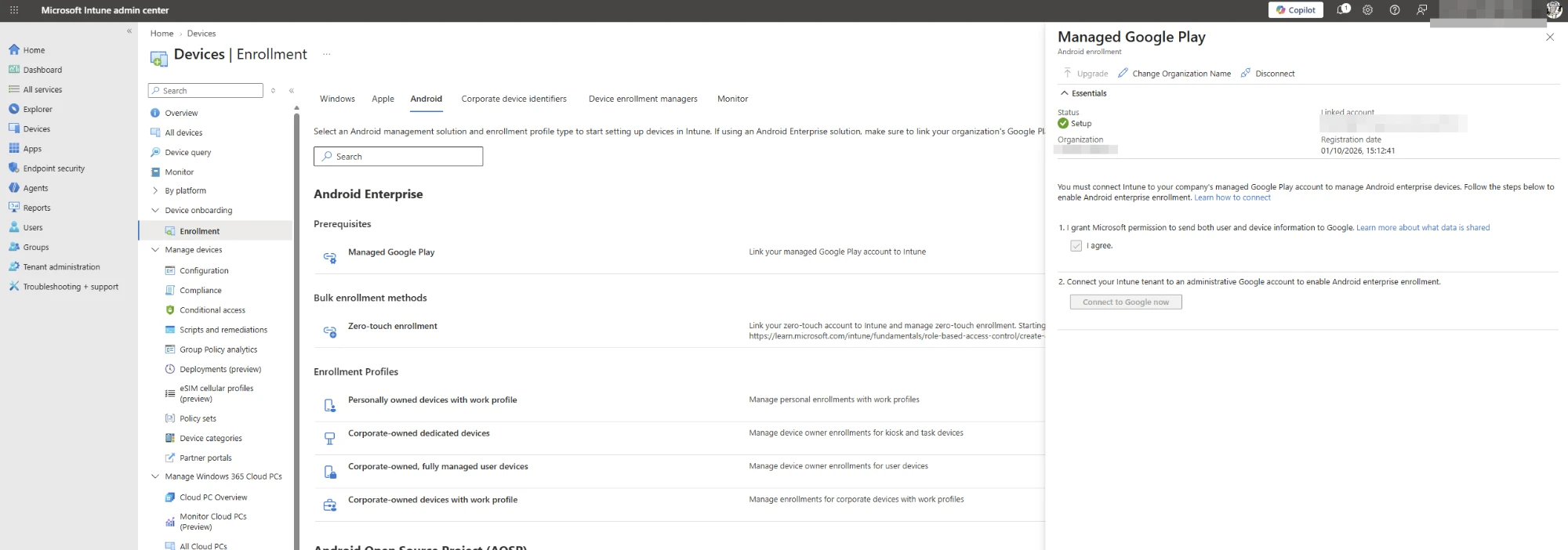
2. Go to **Devices → Enrollment → Android → Prerequisites → Managed Google Play**.
3. Tick **I agree** and select **Connect to Google now**.
4. Sign in with the Google account that should own your Managed Google Play enterprise and complete the wizard.

<figure><img src="https://2868468309-files.gitbook.io/~/files/v0/b/gitbook-x-prod.appspot.com/o/spaces%2F-MkrcM7cKOpXKri1kVrh%2Fuploads%2Fgit-blob-00fa3b01b64bd813fcb5baf89c995350dec7e927%2Fandroid-mgp-intune-connect.webp?alt=media" alt="Managed Google Play under Devices > Enrollment > Android in Intune"><figcaption><p>Managed Google Play under Devices → Enrollment → Android (connected, status Setup)</p></figcaption></figure>

{% hint style="warning" %}
**Tenant administration → Connectors and tokens → Managed Google Play** only shows the connection status and the scope tag for synced apps. It no longer offers the option to connect a Google account.
{% endhint %}

After connecting, the status shows **Setup** together with the linked account. On **Tenant administration → Connectors and tokens → Managed Google Play** the status must no longer show **Not provisioned**.

If you use a scope tag on that page, make sure the admins working with Android apps are assigned to it. Otherwise they cannot see the synced apps in Intune.
{% endstep %}

{% step %}

### Grant the Graph permission to the RealmJoin Portal

The RealmJoin Portal app needs the Microsoft Graph application permission **`DeviceManagementConfiguration.ReadWrite.All`**. It is used to read the Managed Google Play connection status and to approve and sync apps into your Managed Google Play enterprise.

This permission cannot be granted from the **Features** tab in the RealmJoin Portal yet. Run the following script instead. Replace `<YOUR-TENANT-ID>` with your Entra ID tenant ID.

{% code title="Grant-RealmJoinAndroidPermission.ps1" overflow="wrap" %}

```powershell
<#
.SYNOPSIS
    Grants the RealmJoin Portal app the Microsoft Graph application permission
    "DeviceManagementConfiguration.ReadWrite.All" (required for Android deployment via Managed Google Play).

.NOTES
    Run as Global Administrator or Privileged Role Administrator of the target tenant.
    Requires the Microsoft Graph PowerShell SDK:  Install-Module Microsoft.Graph -Scope CurrentUser
#>

$TenantId    = "<YOUR-TENANT-ID>"                         # e.g. 00000000-0000-0000-0000-000000000000
$PortalAppId = "b0130885-16be-4c6f-83de-5b1042b5d2e3"     # RealmJoin Portal
$GraphAppId  = "00000003-0000-0000-c000-000000000000"     # Microsoft Graph
$Permission  = "DeviceManagementConfiguration.ReadWrite.All"

Connect-MgGraph -TenantId $TenantId -Scopes "Application.Read.All", "AppRoleAssignment.ReadWrite.All" -NoWelcome

$portalSp = Get-MgServicePrincipal -Filter "appId eq '$PortalAppId'"
if (-not $portalSp) { throw "RealmJoin Portal service principal not found in tenant $TenantId. Onboard RealmJoin first." }

$graphSp = Get-MgServicePrincipal -Filter "appId eq '$GraphAppId'"
$appRole = $graphSp.AppRoles | Where-Object { $_.Value -eq $Permission -and $_.AllowedMemberTypes -contains "Application" }

$existing = Get-MgServicePrincipalAppRoleAssignment -ServicePrincipalId $portalSp.Id -All |
    Where-Object { $_.ResourceId -eq $graphSp.Id -and $_.AppRoleId -eq $appRole.Id }

if ($existing) {
    Write-Host "$Permission is already granted to RealmJoin Portal." -ForegroundColor Green
}
else {
    New-MgServicePrincipalAppRoleAssignment -ServicePrincipalId $portalSp.Id `
        -PrincipalId $portalSp.Id -ResourceId $graphSp.Id -AppRoleId $appRole.Id | Out-Null
    Write-Host "Granted $Permission to RealmJoin Portal." -ForegroundColor Green
}

Disconnect-MgGraph | Out-Null
```

{% endcode %}

The script can safely be run more than once; it does nothing if the permission is already granted. Allow a few minutes for the new permission to take effect.

{% hint style="danger" %}
The **Features** tab may offer to **downgrade** `DeviceManagementConfiguration.ReadWrite.All` to `DeviceManagementConfiguration.Read.All` because it is no longer needed for health scripts. If you use Android apps, **do not downgrade**. Android app deployment stops working without the write permission.
{% endhint %}
{% endstep %}

{% step %}

### Request activation

Android app deployment is a tenant feature that is activated by RealmJoin on request. Send a short request to <support@realmjoin.com> and include your tenant ID or name.

The feature requires **Intune deployment** to be active for your tenant as well.
{% endstep %}
{% endstepper %}

## Add an Android app

{% stepper %}
{% step %}

### Open the Package Store and select Android

In the RealmJoin Portal, open the [Package Store](/application-management/packages/package-store.md) and select **Android** in the OS filter. The filter only appears once the feature is activated.

<figure><img src="https://2868468309-files.gitbook.io/~/files/v0/b/gitbook-x-prod.appspot.com/o/spaces%2F-MkrcM7cKOpXKri1kVrh%2Fuploads%2Fgit-blob-68ab504816a757cd36e40553d079ebd197fb24bf%2Fandroid-mgp-store-filter.png?alt=media" alt="Android OS filter in the Package Store"><figcaption><p>Android OS filter in the Package Store</p></figcaption></figure>
{% endstep %}

{% step %}

### Copy the app's Google Play link

Find the app on [Google Play](https://play.google.com/store/apps) and copy the link from the browser's address bar, for example for Microsoft Teams:

`https://play.google.com/store/apps/details?id=com.microsoft.teams`

Pasting only the package name (`com.microsoft.teams`) works as well.
{% endstep %}

{% step %}

### Paste the link and subscribe

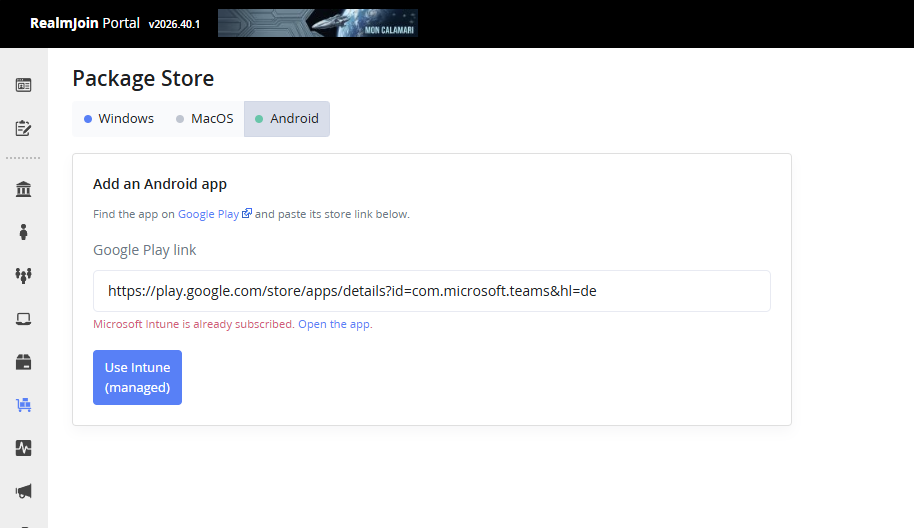
Paste the link into the **Google Play link** field and select **Use Intune (managed)**. RealmJoin checks that the app exists on Google Play and that it is not already subscribed in your tenant, then opens the app's subscription page. Select **Continue** to start the subscription; there is nothing else to configure.

<figure><img src="https://2868468309-files.gitbook.io/~/files/v0/b/gitbook-x-prod.appspot.com/o/spaces%2F-MkrcM7cKOpXKri1kVrh%2Fuploads%2Fgit-blob-9c440bd9e3fdb8d9d16212ea0599c47609b90faa%2Fandroid-mgp-paste-link.png?alt=media" alt="Google Play link pasted. If the app already exists, the portal links to it instead"><figcaption><p>Google Play link pasted. If the app already exists, the portal links to it instead</p></figcaption></figure>

<figure><img src="https://2868468309-files.gitbook.io/~/files/v0/b/gitbook-x-prod.appspot.com/o/spaces%2F-MkrcM7cKOpXKri1kVrh%2Fuploads%2Fgit-blob-9ba5e73b754bfa50c839d23b66bacb3d4ff7eec0%2Fandroid-mgp-subscribe.png?alt=media" alt="Subscription page of a Managed Google Play app"><figcaption><p>Subscription page of a Managed Google Play app</p></figcaption></figure>
{% endstep %}

{% step %}

### Wait for the subscription to finish

RealmJoin now processes the subscription in the background and shows its progress:

1. The app is approved in your Managed Google Play enterprise and an Intune sync is started.
2. RealmJoin waits until the app appears in Intune. This can take a few minutes.
3. The deployment groups are created and assigned to the app.

<figure><img src="https://2868468309-files.gitbook.io/~/files/v0/b/gitbook-x-prod.appspot.com/o/spaces%2F-MkrcM7cKOpXKri1kVrh%2Fuploads%2Fgit-blob-908b095cfda7778004780f14cdc3f4ae2cfcb683%2Fandroid-mgp-progress.png?alt=media" alt="Subscription in progress"><figcaption><p>Subscription in progress</p></figcaption></figure>

When it is done, the app page shows the created groups and assignments.

<figure><img src="https://2868468309-files.gitbook.io/~/files/v0/b/gitbook-x-prod.appspot.com/o/spaces%2F-MkrcM7cKOpXKri1kVrh%2Fuploads%2Fgit-blob-d88776890fad17c7b2cae680b28c00cd30480ffb%2Fandroid-mgp-app-overview.png?alt=media" alt="Subscribed app with its RealmJoin-managed groups"><figcaption><p>Subscribed app with its RealmJoin-managed groups</p></figcaption></figure>

The app is also listed under **Packages**; set the **Platform** filter to **Android** to show only Android apps.

<figure><img src="https://2868468309-files.gitbook.io/~/files/v0/b/gitbook-x-prod.appspot.com/o/spaces%2F-MkrcM7cKOpXKri1kVrh%2Fuploads%2Fgit-blob-e19a0bbec4256c8bc523c7fd7822cac893b6b11b%2Fandroid-mgp-packages-list.png?alt=media" alt="Packages list filtered to Android"><figcaption><p>Packages list filtered to Android</p></figcaption></figure>
{% endstep %}
{% endstepper %}

## Deploy the app

RealmJoin creates three Entra ID groups per Android app and assigns them in Intune. The names follow your tenant's group naming template; with the default template they look like this (example for Microsoft Teams):

| Group                                         | Intune assignment | Purpose                                                |
| --------------------------------------------- | ----------------- | ------------------------------------------------------ |
| `app - Android - Microsoft Teams`             | Required          | The app is installed automatically.                    |
| `app - Android - Microsoft Teams (available)` | Available         | Users can install the app from the managed Play Store. |
| `app - Android - Microsoft Teams (uninstall)` | Uninstall         | The app is removed from the device.                    |

Add users or devices to these groups from the app's page in the RealmJoin Portal, the same way as for other packages (see [Package Configuration and Assignments](/application-management/packages/package-deployment.md)). Android apps get no Preview or Update group, because Google Play delivers updates.

## Troubleshooting

| Message in the RealmJoin Portal                                          | What to do                                                                                                                           |
| ------------------------------------------------------------------------ | ------------------------------------------------------------------------------------------------------------------------------------ |
| *Android deployment is not enabled for this tenant.*                     | The feature has not been activated yet. See [Request activation](#request-activation).                                               |
| *Managed Google Play is not connected*                                   | Intune is not connected to Managed Google Play. See [Connect Intune to Managed Google Play](#connect-intune-to-managed-google-play). |
| *… missing the DeviceManagementConfiguration.ReadWrite.All permission …* | Run the [permission script](#grant-the-graph-permission-to-the-realmjoin-portal) and wait a few minutes.                             |
| *This app was not found on Google Play.*                                 | Check the link. It must be a `play.google.com/store/apps/details?id=…` link of a publicly available app.                             |
| *… is already subscribed* / *is already being subscribed*                | The app already exists in your tenant or its subscription is still running. Open the existing app instead.                           |

If a subscription does not finish, RealmJoin retries it automatically. If the app still does not appear after some time, check the **Last sync** status under **Tenant administration → Connectors and tokens → Managed Google Play** in Intune and contact <support@realmjoin.com>.


---

# Agent Instructions
This documentation is published with GitBook. GitBook is the documentation platform designed so that both humans and AI agents can read, navigate, and reason over technical content effectively. Learn more at gitbook.com.

## Querying This Documentation
If you need additional information that is not directly available in this page, you can query the documentation by asking a question.

Perform an HTTP GET request on the following URL with the `ask` and `goal` query parameters:

```
GET https://docs.realmjoin.com/application-management/packages/android-apps-managed-google-play.md?ask=<question>&goal=<user_goal>
```

`ask` is the immediate question: it should be specific, self-contained, and written in natural language.
`goal` is what the user is ultimately trying to achieve, the reason they need the answer. Sharing it helps GitBook give you a better, more relevant answer. A goal is most helpful when it describes the outcome the user wants rather than restating the question. For example, with `ask=how do I create an API token`, a goal like `automate deployments from our CI pipeline` lets GitBook tailor the answer to that use case.

The response will contain a direct answer to the question and relevant excerpts and sources from the documentation.

Use this mechanism when the answer is not explicitly present in the current page, you need clarification or additional context, or you want to retrieve related documentation sections.